

Google Search Console was previously known as Google Webmaster Tools and was created as a free tool for webmasters (those who look after their own website) to monitor their site’s presence in Google search. Over the years, the information provided in Google Search Console reports has evolved with some reports being added and some being removed. This article is an introduction to the information that’s available in your reports and why it’s important (or not!).
Not all reports in GSC are particularly useful, but if you do manage your own website and are involved in optimising your website for search, many of the reports are worth monitoring.
Benefits of having a Google Search Console account
#1: Analyse your search performance
You can see your impressions (views) in search results along with your click through rate (CTR) and average position. Over time you can see whether your SEO efforts are paying off.
#2: Identify and address issues with your site
You’ll see warnings and errors if Google cannot access pages of your website or if their are mobile usability issues preventing mobile users from accessing content on your pages.
#3: Get your content on Google
You can upload a sitemap file showing all pages of your website you want Google to find and index in its search engines.

Getting started with Google Search Console
- Create your account. Head on over to search.google.com and sign up with your Google login (assuming you have one you already use for Analytics/Google Ads/YouTube, etc).
- Verify your domain – when you create your account, you’ll be asked for your domain and then given a TXT record to add to your DNS settings. You’ll need access to your domain provider (e.g. GoDaddy, 1and1) and your DNS settings to do this. Alternatively you can verify in other ways such as uploading a HTML file to your server. Again, this requires access to your hosting provider via FTP or File Manager so you may need a web developer to assist with this bit.
- Create and upload a sitemap. Check whether your website already has a sitemap site up by visiting yourdomain.co.uk/sitemap.xml. If you don’t have a sitemap, you can create one for free by Googling ‘free xml sitemap generator‘. Once you have your sitemap added to your website under the root domain, upload your sitemap to Google Search Console by finding the ‘Sitemaps’ option under Index down the left hand menu.
- Wait for data. Depending on the level of traffic to your website, you may have to way a few days/weeks to start seeing data in your account.
Reports to check
Overview > Performance
See how your website performs in search results. You can toggle on and off Impressions, Clicks, CTR and Average Position. It’s worth mentioning that you can link your Google Search Console to your Google Analytics account to see this data in your GA reports without logging into GSC.


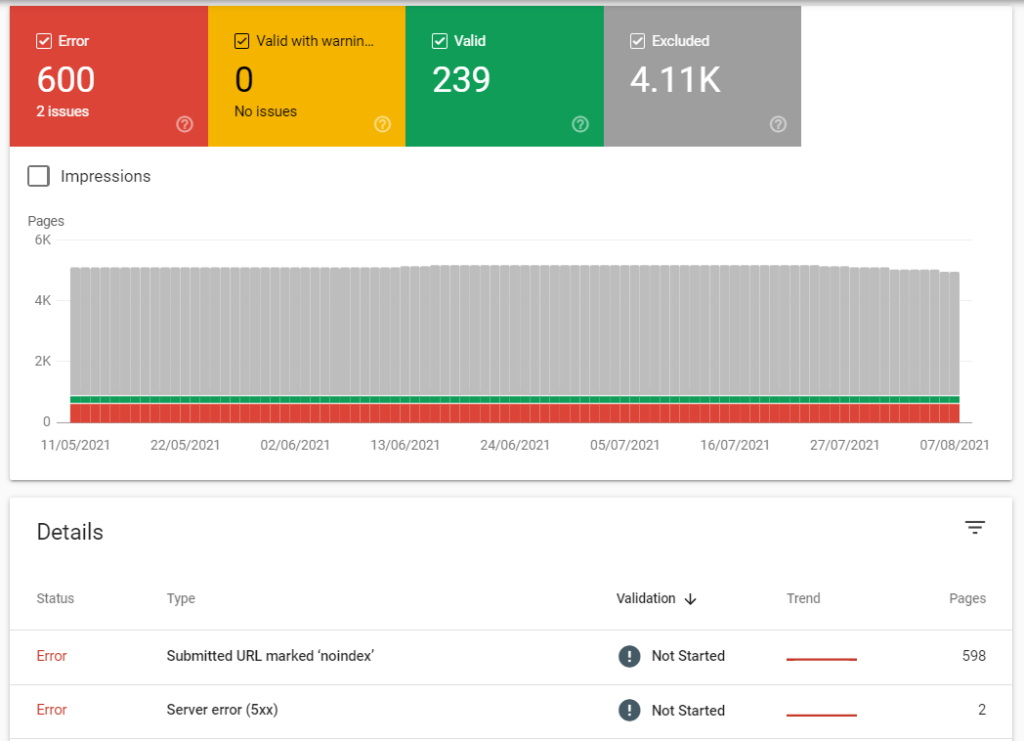
Index > Coverage
See whether Google has indexed all the pages on your website and if it found any errors whilst trying to access your pages. Sometimes we may block pages from Google using a ‘noindex’ request in a robots.txt file, but then submit the same pages on our sitemap. This would be shown as an error as we’re asking Google to index them and not index them at the same time.
Experience > Page Experience
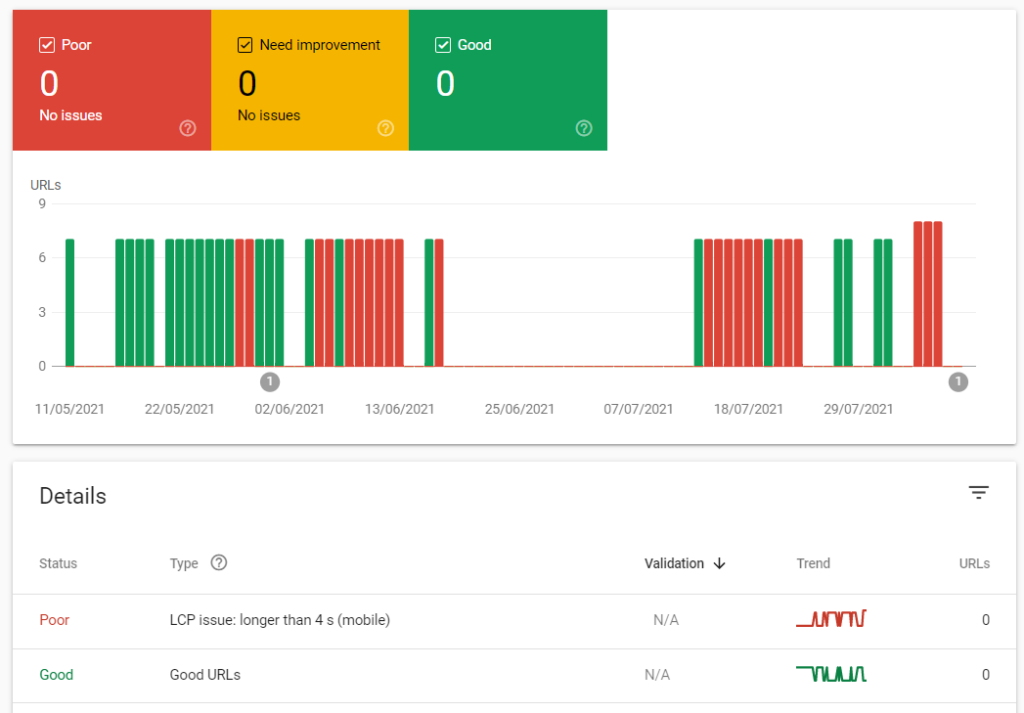
Google is all about user experience and there’s a whole section dedicated to this in Google Search Console. The Page Experience report will show you how many pages on your site give a good user experience.

Experience > Core Web Vitals
Core Web Vitals looks at 3 elements of your page loading speed to assess the experience users may have when interacting with your site on both mobile and desktop. Use this report to identify any issues with your site that prevent pages loading quickly. More about this report here.
Experience > Mobile Usability
As it sounds, this reports looks specifically at how well your website functions on a mobile device. As Google crawls and indexes pages as a mobile device, it’s more important than ever to ensure your site serves small screen users well.

Security & Manual Actions > Manual Actions
Hopefully, you’ll never need to check in here, but if you suspect your website has been penalised by Google and disappeared from the search results, this report will show it any manual penalties have been applied to your domain and how to fix them.
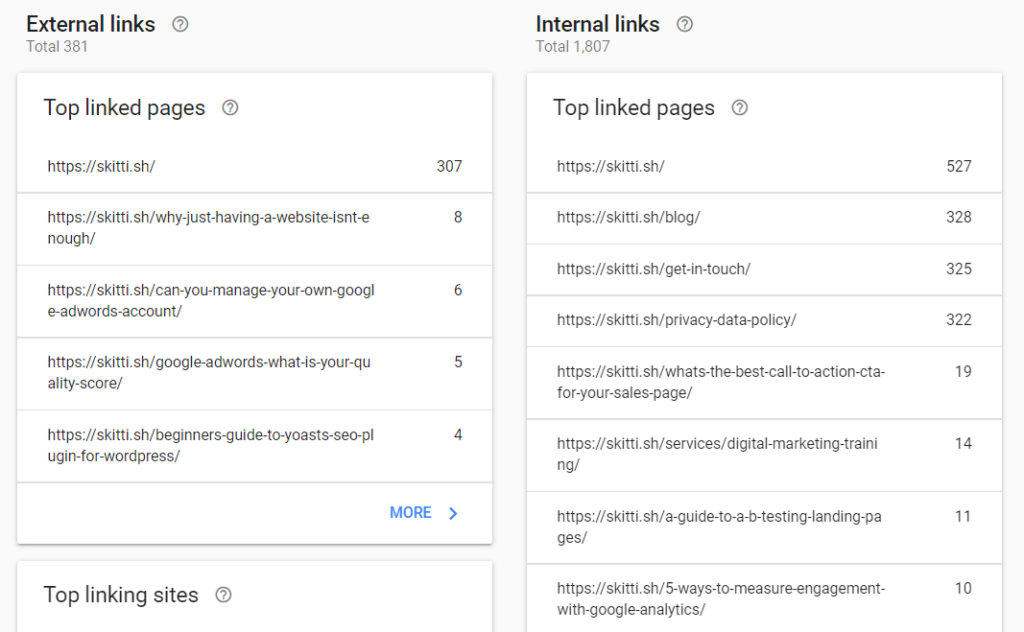
Links
Not as useful as most backlink checking tools, but this report will show a limited number of internal and external links to your website. It also shows which pages have the most links pointing to them and what the most used anchor text (top linking text) is.
We’ve barely touched the surface of these reports, but if you’re brand new to Google Search Console, this should be enough to get stuck in and see what you can find in your reports. If you’re unsure what any of it means check for a question mark symbol which, when hovered over, should display more information.

Leave a Reply